

Clinical Log guide
The Clinical Log records when each clinical test starts and ends and saves those times in a YAML file. All three Axivity sensors (pelvis and both wrists) are started and downloaded with OMGui; the Clinical Log only keeps the timing.
Overview
The Clinical Log is a web page: open continuum-tools.pages.dev/clinical-log in Chrome or Edge and bookmark it. There is nothing to install. After the first visit it also opens without internet, and when online it always loads the latest version. The data never leaves the computer: it stays in the browser and in the file you save.
- Start, stop and cancel each trial; timed tests stop on their own (and can be stopped early).
- Mark the synchronization shakes at the start and end of each recording.
- Mark a run NOT OK with a comment, or delete a run recorded by mistake.
- Saves the YAML file to disk after every change (Chrome / Edge).
Two ways to record
For now there are two ways to record a subject. Ask the study coordinator which one to use.
| A · One continuous recording | B · Two recordings | |
|---|---|---|
| Sensors | Record from the start of the clinical session to the end of the 7 days at home | One recording for the clinical session; the sensors are restarted for a new recording at home |
| Sync shakes | 2: start (clinic) and end (after the 7 days) | 4: start and end of the clinical recording, start and end of the home recording |
| Sensor files | RAW_DATA/SUBJECT_XX/SESSION_01/ | RAW_DATA/SUBJECT_XX/SESSION_01/CLINICAL/ and …/HOME/ |
| Clinical Log file | One file for the whole subject: RAW_DATA/SUBJECT_XX/SESSION_01/subject_XX_trialMarkers.yaml | |
Mark a shake with Sync shake: start of a recording right after the sensors start recording, and with Sync shake: end of a recording just before a recording ends. Both buttons can be pressed as many times as needed; every shake is listed under Events.
Before the session: start the sensors in OMGui
Start all three sensors (pelvis, left wrist, right wrist) in OMGui, close OMGui, then open the Clinical Log.
- Connect the three Axivity sensors to the session computer and open OMGui. Each sensor appears in the device list with its ID and status Stopped.
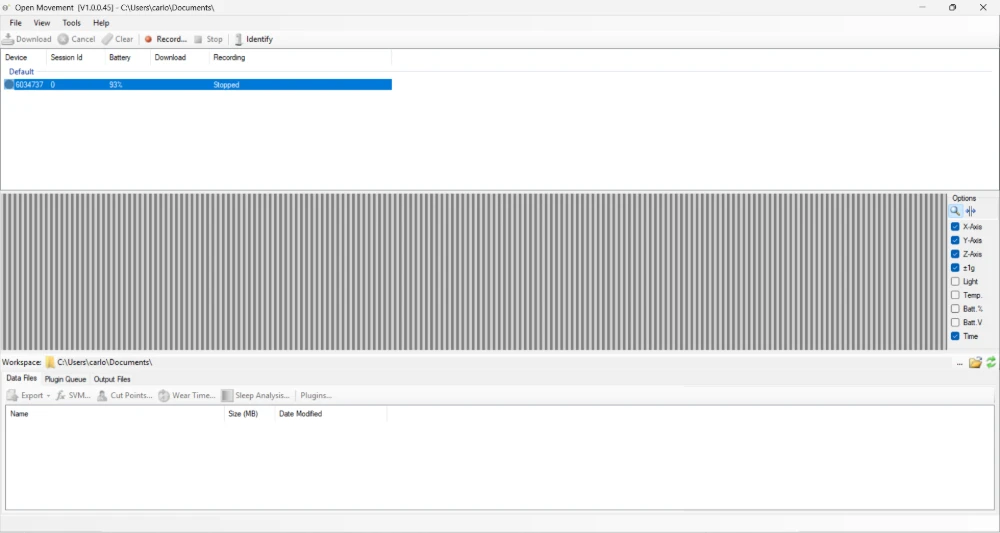
- For each sensor: select it, click Record…, check the sampling (100 Hz, 8 g, 2000 dps) and choose the recording time.
Use the same option for all three sensors. A: the recording must last until the end of the 7 days at home.
B: it only needs to cover the clinical session.
- Immediately on Disconnect: recording starts when you unplug the sensor.
- Interval: recording starts at the Start Date and Start Time you set, for the duration you choose.
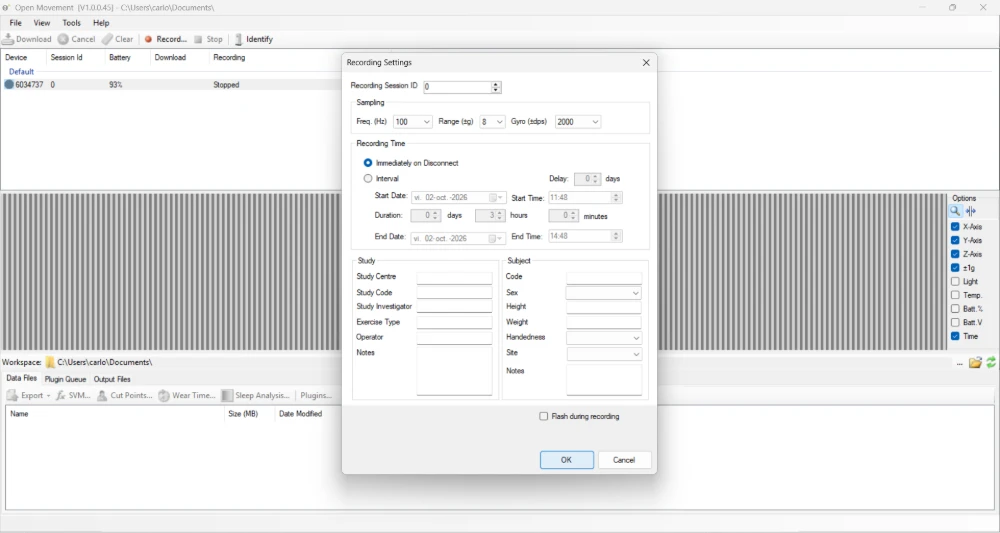
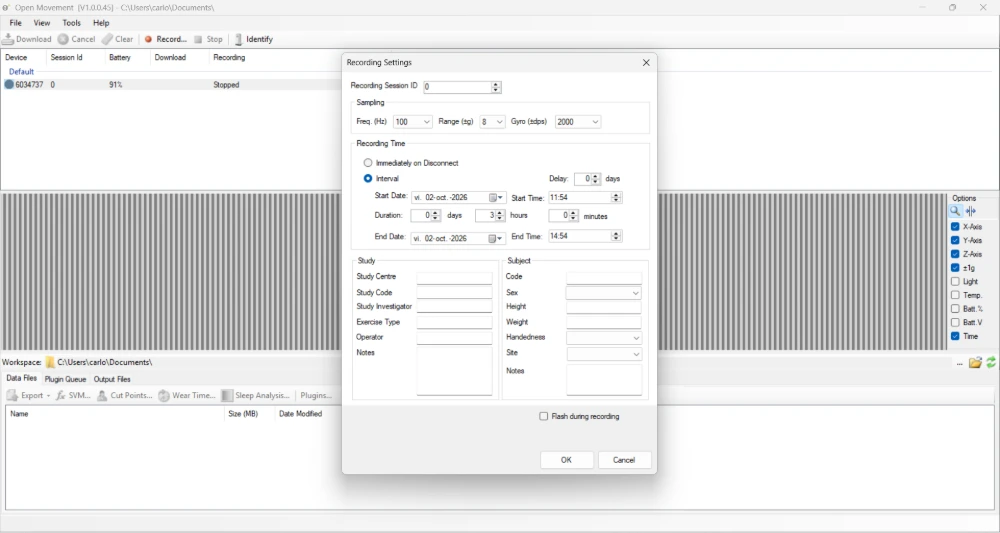
- Check that each sensor's status changes from Stopped to Always (or to the interval you set), and write down which sensor ID goes on the pelvis, left wrist and right wrist in the SENSOR_SETUP sheet of the description file.
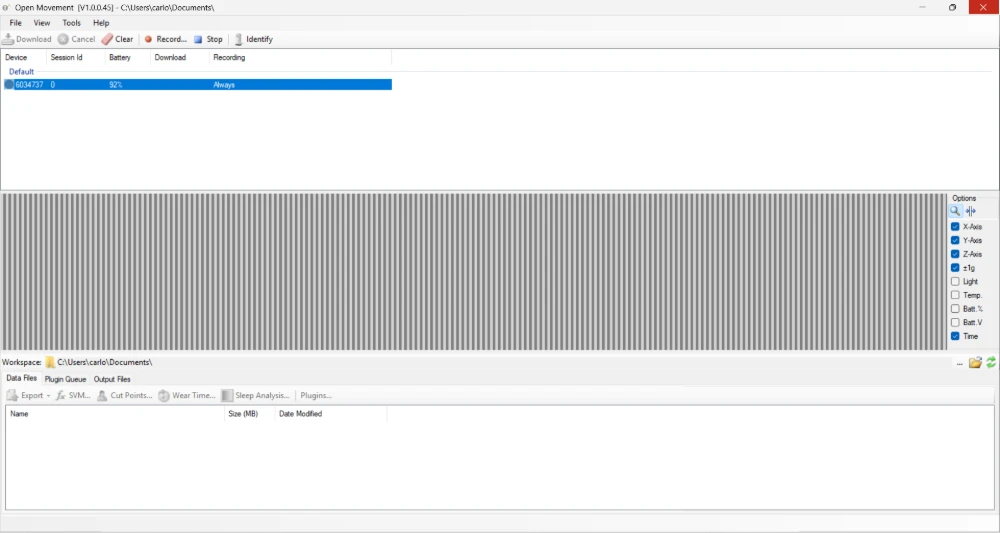
- Disconnect the sensors and close OMGui.
- Open the Clinical Log in Chrome or Edge and check the version next to "Clinical Log" in the header.
Setting up a session
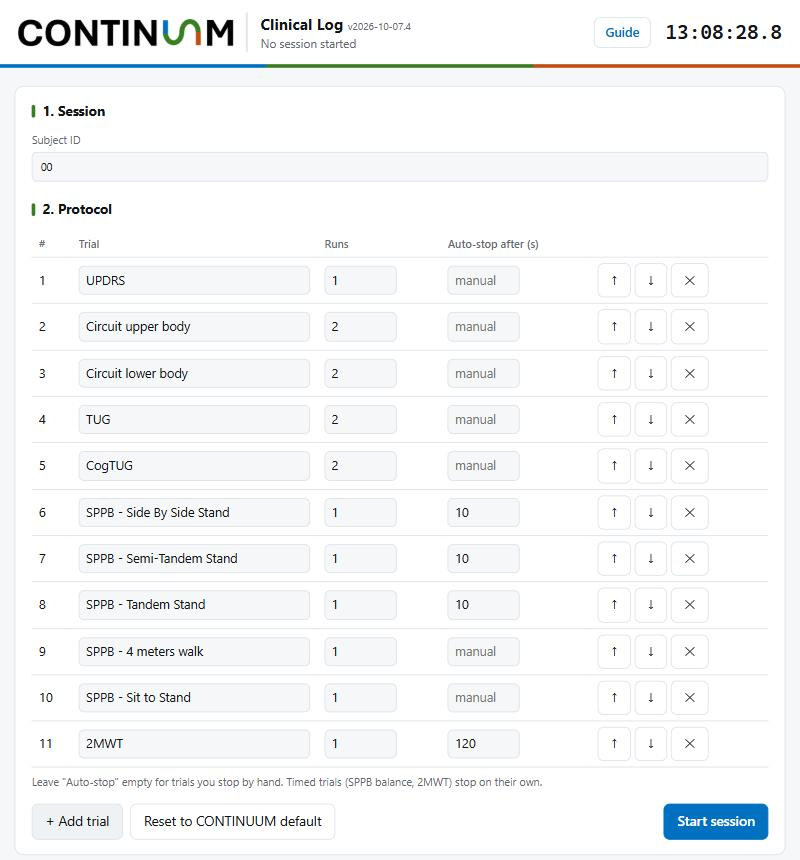
- Session: type the Subject ID, for example
00. It is the only field, and it names the saved file (subject_00_trialMarkers.yaml). - Protocol: the list comes with the CONTINUUM tests in the standard order. For each trial you can change the name, the number of required runs, and the auto-stop time for timed tests (leave it empty, "manual", for tests you stop by hand). Use ↑ ↓ to reorder, ✕ to remove, + Add trial to add one, and Reset to CONTINUUM default to go back to the standard list.
- Click Start session. The browser asks where to save the session file: choose
RAW_DATA/SUBJECT_XX/SESSION_01and keep the suggested name. The protocol is locked for the session, and the header shows the subject and start time.
| Trial | Runs | Auto-stop |
|---|---|---|
| UPDRS | 1 | manual |
| Circuit upper body | 2 | manual |
| Circuit lower body | 2 | manual |
| TUG | 2 | manual |
| CogTUG | 2 | manual |
| SPPB - Side By Side Stand | 1 | 10 s |
| SPPB - Semi-Tandem Stand | 1 | 10 s |
| SPPB - Tandem Stand | 1 | 10 s |
| SPPB - 4 meters walk | 1 | manual |
| SPPB - Sit to Stand | 1 | manual |
| 2MWT | 1 | 120 s |
Auto-save
Once you choose the file, the Clinical Log rewrites it after every run, comment, note or deletion. If the browser crashes or the computer restarts, the data recorded so far is already on disk. A bar at the top of the session shows the state:
| Bar | Meaning | What to do |
|---|---|---|
| Green: "Auto-saving to … · last saved hh:mm:ss" | Every change is being saved | Nothing |
| Orange: "Not saving to disk" | No file chosen (the save dialog was closed) | Click Choose file… |
| Orange: "Auto-save paused … Reconnect" | The page was reloaded and the browser needs permission again | Click Reconnect and allow |
| Orange: "This browser can't save to disk automatically" | Not Chrome or Edge | Use Chrome or Edge, or click Save YAML regularly |
During the session: synchronize and record the trials
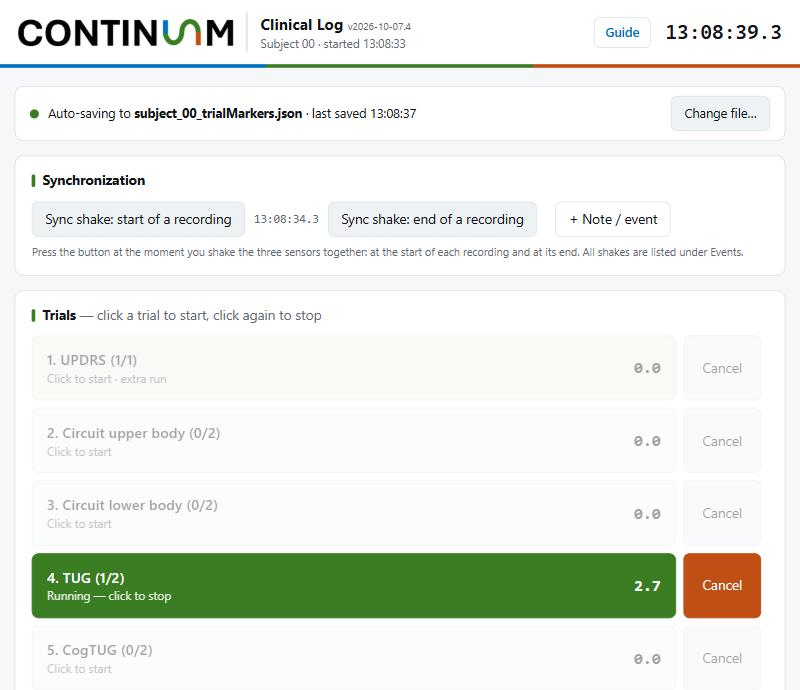
- First synchronization shake. If you used a start time in OMGui, wait until it has passed. Hold the three sensors together, shake them firmly for a few seconds, and click Sync shake: start of a recording at the moment of the shake.
- Instrument the subject: wrist sensors on the wrists and the pelvis sensor on the lower back, as noted in SENSOR_SETUP.
- Record the trials in the order shown. One trial can run at a time.
- Start: click the trial. It turns green, the timer runs, and you hear a beep.
- Stop: click it again. The run is saved and the count goes up, for example (0/2) to (1/2).
- Cancel: while a trial is running, click the orange Cancel (or press Esc). The run is discarded and the count stays the same.
- Timed trials (marked "auto") count down and stop on their own with a longer beep. If the subject loses the stance or stops walking before the time is up, click the trial to stop it early: the run is saved with its real duration and the comment "Stopped early at 6.3 s".
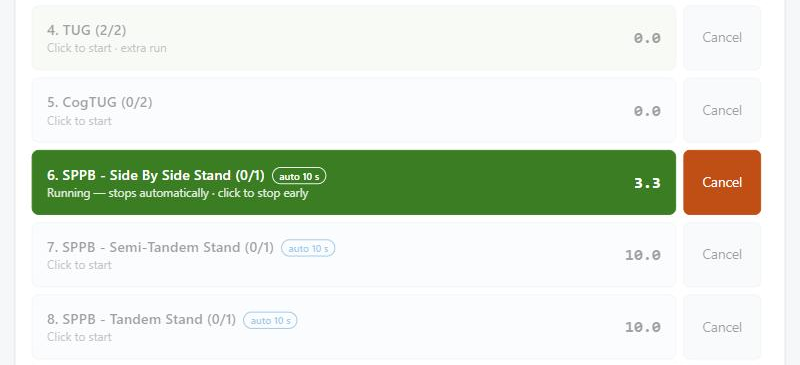
- Notes: click + Note / event to record something that happened, such as a pause. The time is taken when you click.
A trial that already has all its runs turns light green and shows "extra run". You can still record more; the app asks first.
Fixing mistakes
Every finished run appears in Recorded runs, and every sync shake, note and cancelled run in Events. Both can be corrected at any time.
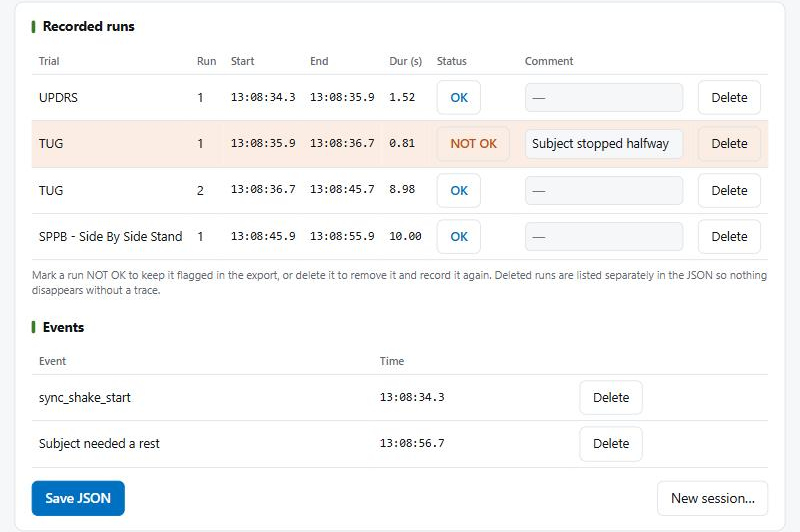
| Situation | What to do | What the file shows |
|---|---|---|
| The run happened but was not valid (subject stopped, wrong instruction) | Click OK to switch it to NOT OK and write the reason in Comment. Record another run. | The run, with status NOT OK and your comment. It is left out of the analysis. |
| The run should not exist (clicked by mistake, wrong trial) | Click Delete and confirm. The count goes down and the remaining runs are renumbered. | The run moves to deleted_trials, with its times |
| Something went wrong while the trial was running | Click Cancel before stopping it. | A "cancelled" event, not a run |
| A timed trial was stopped early by mistake | Delete the run and record it again. | The run moves to deleted_trials |
| A sync shake or note was marked by mistake | Click Delete next to it in Events. | Nothing; deleted events are removed |
At the end of the clinical session
- Check the Recorded runs and Events tables and fix anything wrong (see Fixing mistakes).
- Click Save YAML. It writes to the file you chose at Start session,
subject_<ID>_trialMarkers.yaml, which should be inRAW_DATA/SUBJECT_XX/SESSION_01. With auto-save on, the file is already up to date.
A · One continuous recording
- Leave the sensors recording. The subject goes home wearing them for the 7 days. Don't connect them to the computer: that stops the recording.
B · Two recordings
- Take the sensors off, hold the three together, shake them and click Sync shake: end of a recording.
- Close the Clinical Log. In OMGui, connect the three sensors (this stops the clinical recording) and download each recording
(.cwa only, named with the sensor ID) to
RAW_DATA/SUBJECT_XX/SESSION_01/CLINICAL. - Configure the three sensors again for the home recording (see Before the session, step 2; it must last the 7 days), disconnect them and close OMGui.
- Open the Clinical Log, click Open saved session… and choose the same
subject_XX_trialMarkers.yaml. Shake the three sensors together and click Sync shake: start of a recording. The subject goes home wearing them.
Before the next subject, click New session… in the Clinical Log. It keeps the protocol and clears the subject and runs.
After the 7 days: end sync and download

- Open the Clinical Log. Under Continue a saved session, click Open saved session…, choose the subject's
subject_XX_trialMarkers.yaml, and allow the browser to edit the file. The subject, the runs and the earlier sync shakes come back, and the auto-save bar turns green. - With the sensors still recording, hold the three together, shake them firmly for a few seconds, and click Sync shake: end of a recording at that moment. The file is saved again with the new event.
- Close the Clinical Log, open OMGui, connect the three sensors and download each recording (.cwa only, named with the sensor ID):
- A: to
RAW_DATA/SUBJECT_XX/SESSION_01 - B: to
RAW_DATA/SUBJECT_XX/SESSION_01/HOME
- A: to
- Check the files are there, then wipe the sensors.
| A · One continuous recording | B · Two recordings |
|---|---|
|
|
The description file goes in DESCRIPTION/SUBJECT_XX/SUBJECT_XX.xlsx in both cases.
The saved file (YAML)
The YAML file holds the session details, the protocol, the events and one entry per run. Every time is given twice: as Unix time in milliseconds
(_unix_ms) and as local time with the time zone (_local).
| Field | Meaning |
|---|---|
subject, app_version | Subject ID and the version of the Clinical Log used |
timezone, utc_offset_min | Time zone of the computer, e.g. Europe/Madrid, +120 |
protocol | The trials, required runs and auto-stop times used |
events | Sync shakes (sync_shake_start, sync_shake_end), notes and cancelled runs, each with its time |
trials | One entry per run: trial, run, start and end times, duration_s, auto_stopped, stopped_early, status (OK / NOT OK), comment |
deleted_trials | Runs deleted during the session, with their original times |
subject_XX_trialMarkers.json, before October 2026) still open with
Open saved session…. The bar then says the file is an older JSON: click Save as YAML… and save
subject_XX_trialMarkers.yaml in the same folder. From then on the session is saved to the YAML; the JSON is left as it was
and can stay there (the analysis uses the YAML when both are present).How the times line up with the sensors. OMGui sets each sensor's clock from the computer when it configures it, and the Clinical Log reads the same computer clock, so a trial's start and end can be looked up directly in the .cwa recordings. The two sync shakes give a check: the shake should appear in all three recordings at the times marked, and any difference shows how much the sensor clocks drifted.
Checklist
Clinical session
- Three sensors configured in OMGui on the session computer, same recording option (A: lasting the whole 7 days)
- Sensor IDs noted for pelvis, left wrist and right wrist in SENSOR_SETUP
- OMGui closed
- Clinical Log open, Subject ID filled in, protocol checked (UPDRS first), session started, auto-save bar green
- Start sync shake done and marked
- Subject instrumented
- All trials recorded in order; runs with an issue marked NOT OK (or deleted if they should not exist)
- YAML saved in RAW_DATA/SUBJECT_XX/SESSION_01
- Description file filled in and saved to DESCRIPTION
Going home
- A: sensors left recording
- B: end shake marked, clinical .cwa downloaded to SESSION_01/CLINICAL, sensors reconfigured, YAML reopened, start shake marked
After the 7 days
- Saved session reopened in the Clinical Log, auto-save bar green
- End sync shake done and marked
- Three .cwa files downloaded with OMGui (A: SESSION_01, B: SESSION_01/HOME)
- Sensors wiped
Troubleshooting
| Problem | Fix |
|---|---|
| A recent change doesn't appear | Refresh the page (F5) while online, and check the version next to "Clinical Log" |
| The page doesn't open without internet | Open the link once on that computer while online; after that it also opens offline |
| The page was closed or refreshed mid-session | Open it again in the same browser: the session and runs are restored |
| A trial won't start | Another trial is still running. Stop or cancel it first |
| Save YAML says "A trial is still running" | Stop or cancel the running trial, then save again |
| The auto-save bar is orange | Click Choose file… (or Reconnect after a reload) and pick RAW_DATA/SUBJECT_XX/SESSION_01 |
| After opening a saved session the bar stays orange | The browser was not allowed to edit the file. Click Choose file… and pick the same YAML, or click Save YAML after marking the sync shake |
| "Open saved session…" is not visible | A session is in progress in this browser. Save it, click New session…, then Open saved session… |
| A new session was started for a subject who already has a saved file | Don't save it over the old file. Click New session…, then Open saved session… and choose the subject's existing file, so all events stay in one file |
| The times don't match the sensor data | Check that OMGui and the Clinical Log ran on the same computer, and that the computer clock and time zone were right that day |